GPT Image 2.6 Image Editor for Precise Revisions
Upload a design and tell GPT Image 2.6 what to change and what to keep. Replace a headline, swap an illustration, or change a product’s color. In the coffee diagram below, the Spanish edit kept the layout but changed the meaning of one instruction.
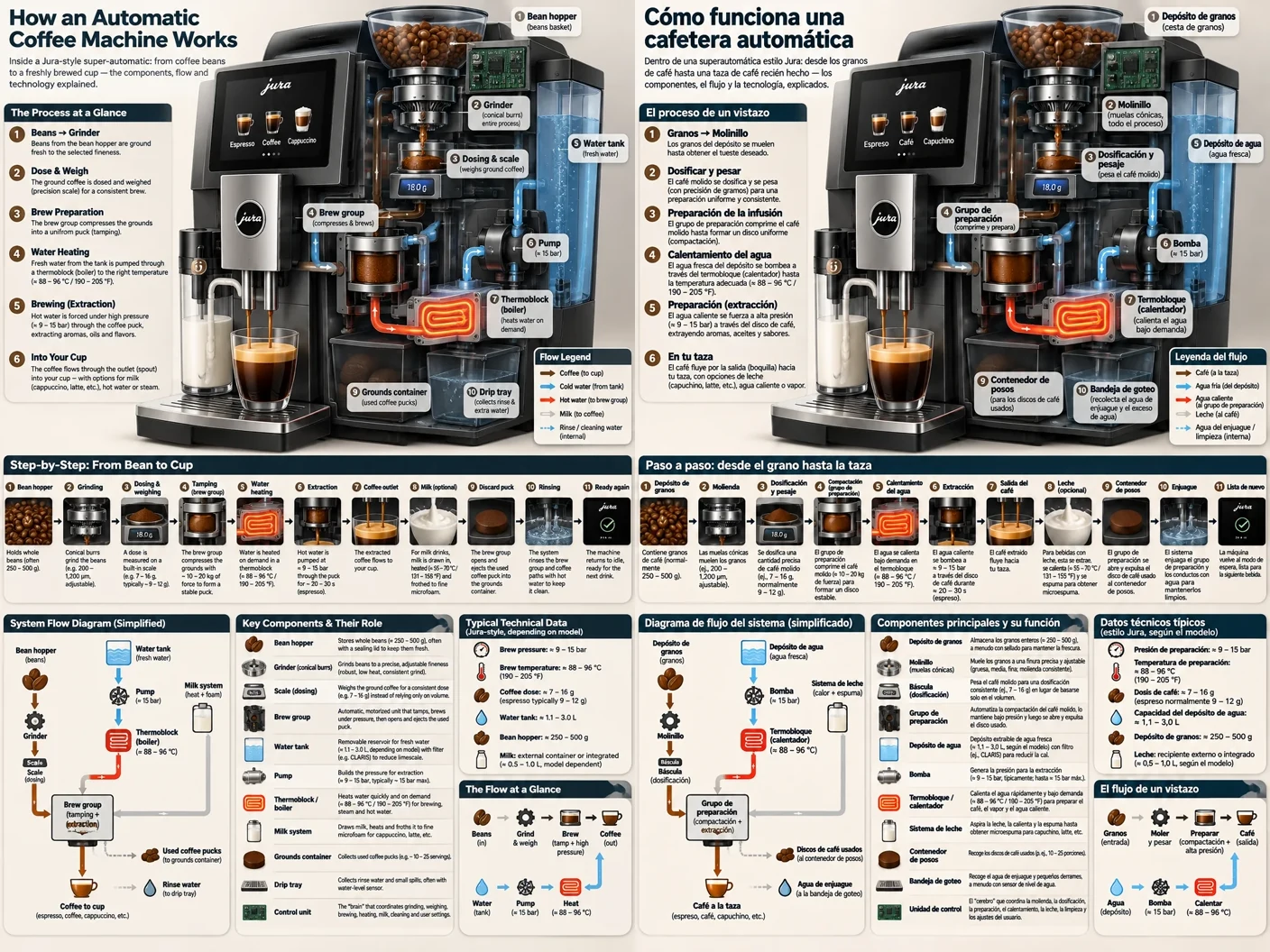
What survived when the labels changed language?
In OpenAI’s GPT Image 2.6 Sunburst example, the input is a finished diagram of an automatic coffee machine. The edit asks for Spanish lettering throughout the design. The cutaway machine still occupies the top right, the numbered process stays on the left, and the picture strip still separates the diagram from the technical panels below. Those landmarks make it easy to recognize the two images as editions of the same design.
Inspect the English source and the Spanish edit
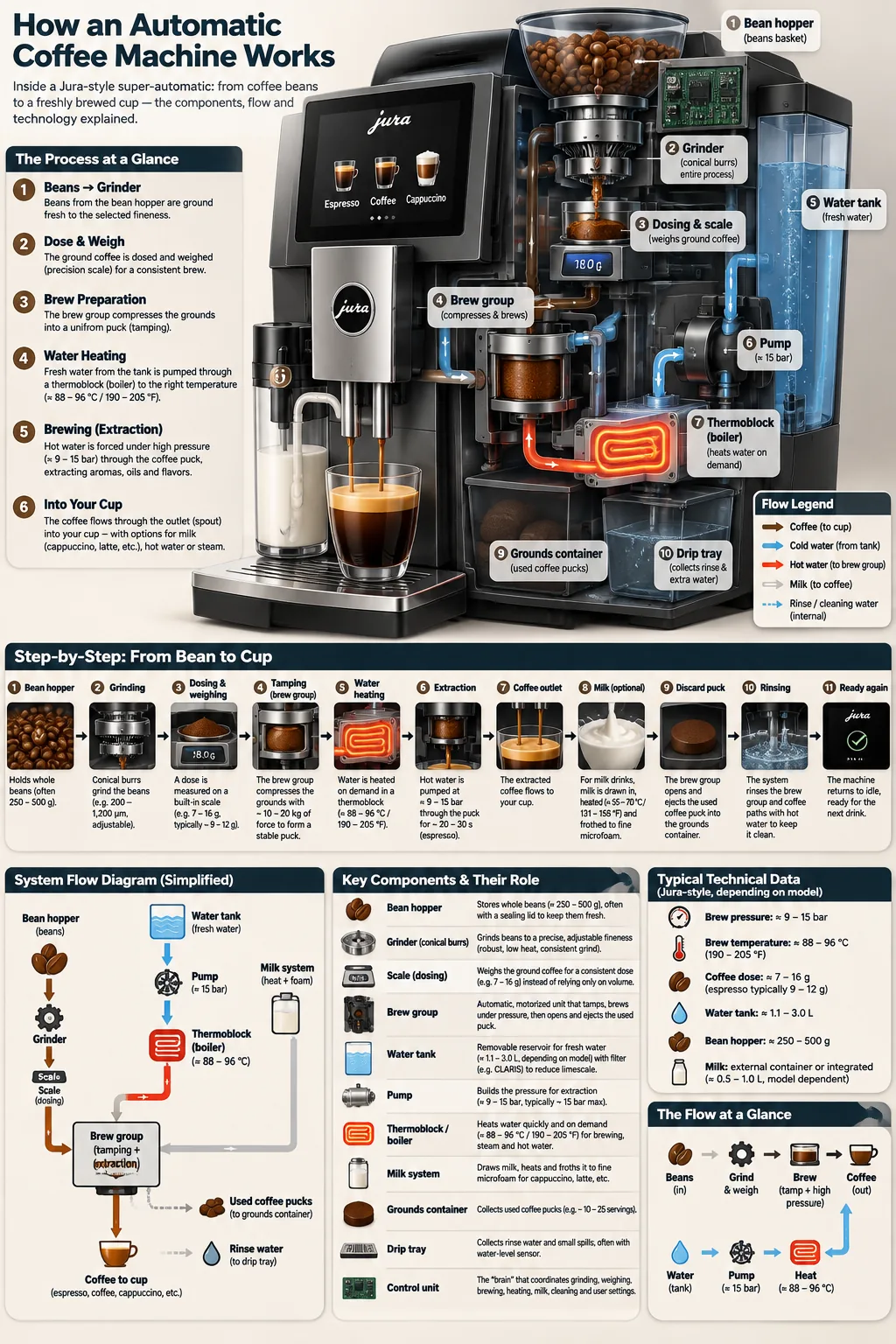
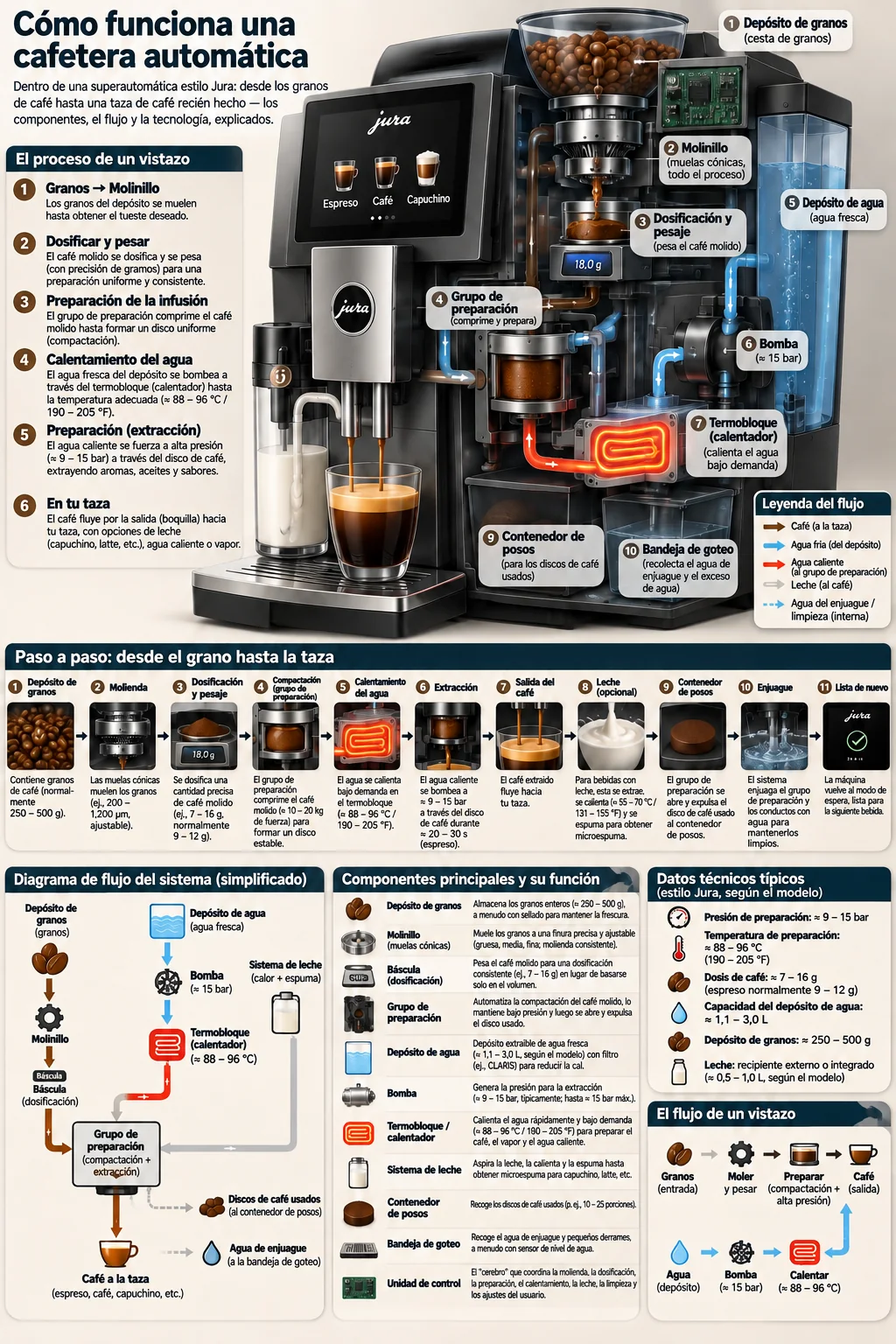
Look at the first tile in the process strip: “Bean hopper” fits on one line, while “Depósito de granos” wraps to two above the same beans. In the third tile, the scale changes from a decimal point to a decimal comma. Both changes are easy to miss when the overall layout looks right. For technical artwork, compare numbers, units, and the order of the steps as well as the wording. Then follow a callout on the cutaway to see whether it still points to the intended part.
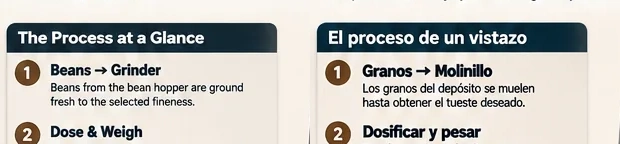
One change is easy to overlook even when both layouts are legible. In the first step, the English instructions specify how finely to grind the beans. The Spanish edit reads “tueste deseado,” or “desired roast.” The panel stayed in place, but a grinder can’t change the roast. Correct the wording before handing this diagram to a reader.
Give the editor a change it can finish
Suppose an exhibition invitation is ready to print, but the opening date has moved. Upload the approved card to the GPT Image 2.6 editor. A useful brief names the old line, its replacement, and the nearest elements that must stay in place:
Replace “Friday, May 7” with “Friday, May 14” in the date line beneath the exhibition title. Keep the date on one line, aligned with the venue name. Preserve the title, border, illustration, and other lettering.
Compare the old and new dates first. Then look at the border nearest the date and the space before the venue line. Those two details will tell you more about the edit than a quick glance at the whole card. If a sponsor requires an exact typeface or you have the original editable layout, changing that line in the source file gives you direct control over every letter.
One more revision, or back to the original?
Use the last approved image as the starting point. If the date is right and the typography held, use that result for a second request, such as darkening the illustration. If the first pass also shrank the venue name, go back to the original and ask for the date and illustration changes together. Otherwise the smaller lettering becomes part of the next reference.
Sunburst is the natural first choice for a crowded diagram or a precise amendment. Flare is useful for a quick proof when the design direction is still open. In Advanced settings, complexity concerns the relationships the model has to plan; quality concerns the detail it renders. For one date, exact replacement wording matters more than moving either control. For a whole page of translated labels, tell the model how to handle longer lines before asking it to plan a denser layout.
When another model fits the revision
- GPT Image 2.5 remains a reasonable choice for a simple edit in a series already made with 2.5. Try 2.6 when the brief calls for coordinating several text changes and layout constraints. Judge the result using your original design as the reference.
- Nano Banana 2.1 offers a different solution when the required change is the canvas itself. A square card that now needs to fill a 4:1 header calls for a new composition. If the canvas is approved and only the date has changed, stay with the 2.6 edit and preserve the existing ratio.
Frequently Asked Questions
Bring the version you want to keep
Upload the approved artwork and describe the first change you need.
Edit an existing imageExplore More AI Models
Seedream 5.5 AI Image Generator & Photo Editor
Create and refine product scenes, campaign visuals, and transparent assets with Seedream 5.5 on LatiAI. Explore reference-image workflows and model settings.
Nano Banana 2.1 Image Generator for Reference Photos
Turn a reference photo into a square product shot, portrait layout, or panoramic banner with Nano Banana 2.1. Choose a canvas and export up to 4K on LatiAI.