Nano Banana 2.1 Image Generator for Reference Photos
Nano Banana 2.1 is Google’s image generation and editing model. On LatiAI, start with a description or bring a product photo, then build a square listing, a portrait campaign image, and a wide banner around the same subject.
Can the product photo survive a 4:1 crop?
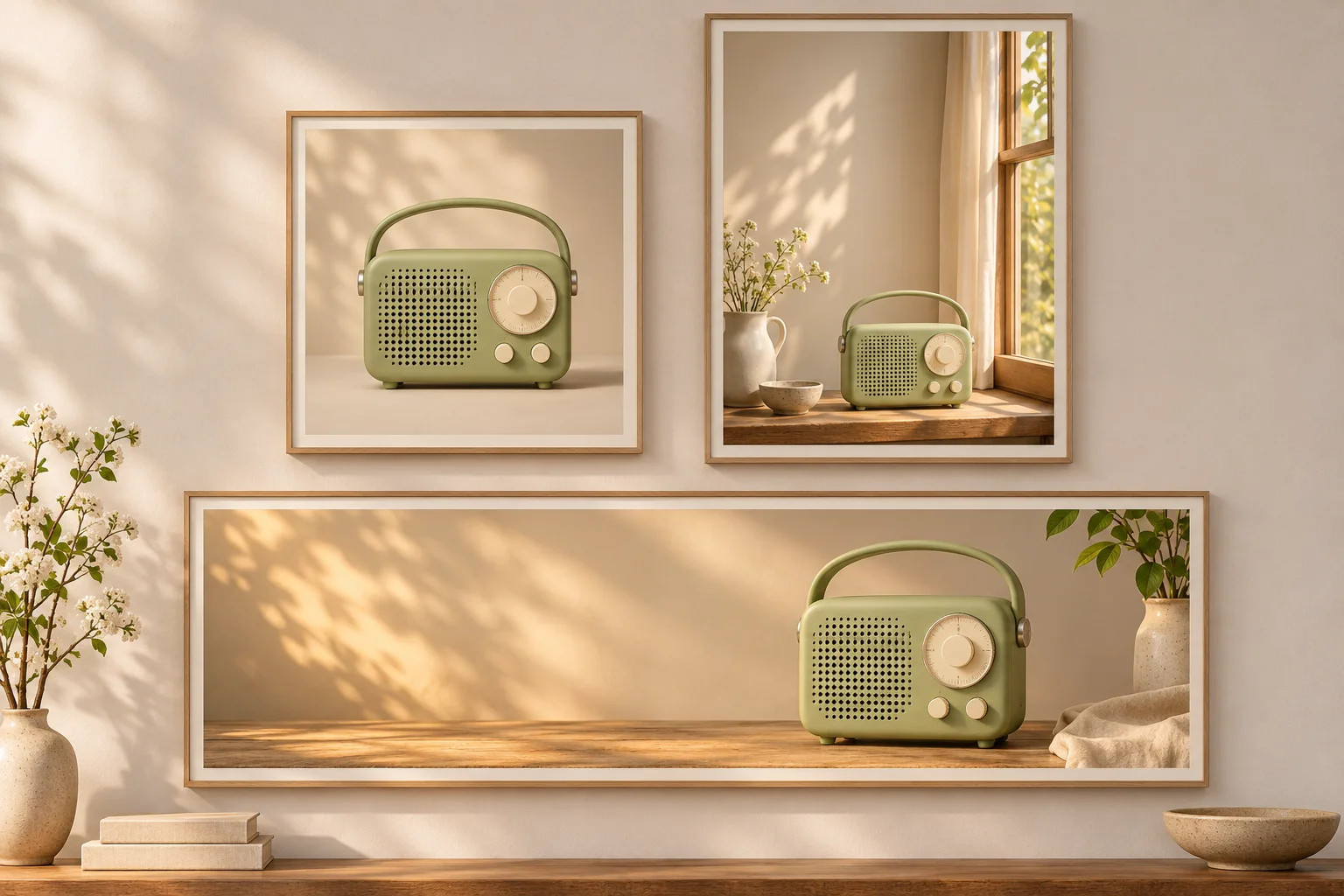
Start with the square catalog photo of the green radio. Its handle, feet and controls all fit comfortably in the square. Now imagine using it for a shallow website header, with a headline on the left. At the full width of a square photo, a 4:1 crop keeps only a quarter of its height. Slide that strip up to catch the handle and you lose the feet. Slide it down to the feet and the handle disappears.
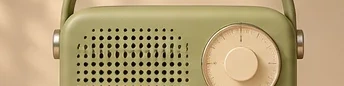
Try the crop with your own photo before generating anything. If the product is already small in the original and the area for your headline is clear, export that crop. It preserves every label and control exactly as photographed. The narrow strip in the radio example would also work as a close-up for a story about the speaker grille. It makes a poor main banner for someone seeing the product for the first time.
Recompose the banner from a reference photo
Open image-to-image mode on LatiAI, select Nano Banana 2.1, and upload the full product photo. Give the model the uncropped reference so it can see how the handle meets the case and where the buttons sit. Set the canvas to 4:1. If you also have a photo of the surface or room you want, add it as a second reference and explain which image supplies the product and which supplies the setting.
The square radio photo supplies the product details for this banner prompt.
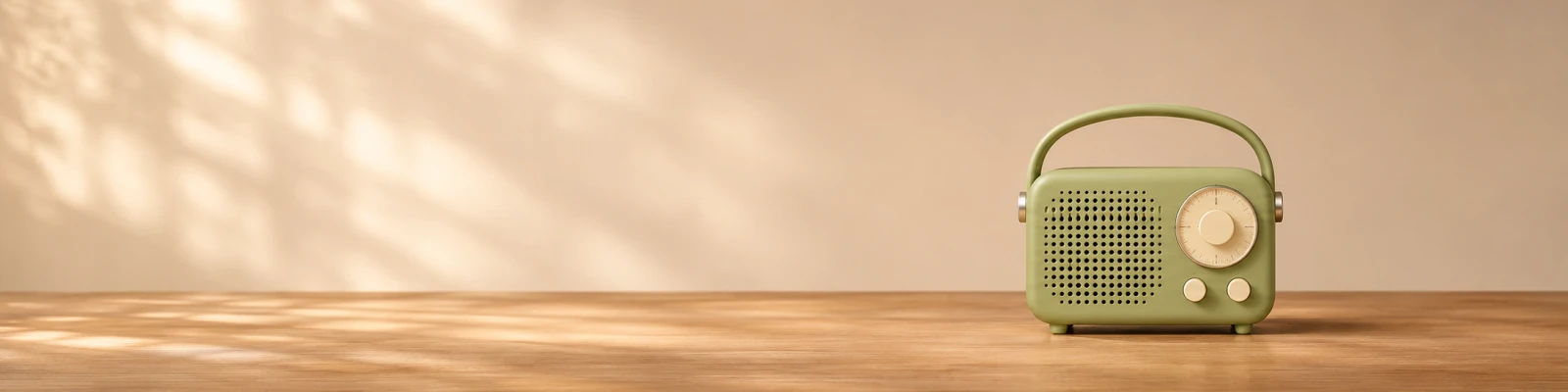
Keep the green radio facing forward, with the arched handle, perforated speaker on the left, one large cream tuning dial and two small buttons below it. Place the whole radio in the right third of a wide oak counter. Leave sunlit wall across the left half for a headline. Keep the handle and both feet inside the frame. Leave the image free of lettering.
Try the result in the actual header with your longest headline. A blank wall can look generous until two lines of type reach the dial. If the headline collides with the product, move the radio farther right or make it slightly smaller in the composition. Keep the headline in the site layout so its alignment and line breaks can change on mobile.
Would you use this image on a product listing?
Compare the square reference and the recomposed example above. You can count one large dial and two small buttons in both. The handle still attaches at the sides, and the feet rest on the counter. Now look at the holes along the upper edge of the speaker grille. The pattern differs between the two images. That detail can pass unnoticed at banner size and become obvious beside a close-up in a product gallery.
Use the same check on a real item. Pick a feature a buyer would use to identify the variant. Count the ports on a speaker, check the shape of a clasp on a bag, or read the printed capacity on a bottle. Enlarge both images until the product itself appears at the same size. Align the top of the handle and the base of the case to make a change in proportions easy to spot. Compare those details before judging lighting or color. If a generated label says something different, use the photographed item for the listing. For a campaign that needs a new setting, you can place a cutout of the original over the new background and keep the actual print intact.
Choose a canvas and resolution for each placement
| Placement | Canvas | What determines the framing |
|---|---|---|
| Catalog tile | 1:1 | Show the entire handle and both feet, with an even margin around the product. |
| Portrait campaign | 4:5 | Set the radio lower on the windowsill and reserve the upper part for copy. |
| Website banner | 4:1 | Put the radio on the right and extend the surface across the left. Check the mobile layout separately. |
Explore placement at 1K. Once the arrangement works, use 2K or 4K when the intended display calls for it. Preview the exported banner at its actual display width to see whether the dial stands out or disappears. If a narrow screen crops the right-hand radio out of the frame, serve the portrait composition there. A larger version of the same wide image still loses the radio in a center crop.
The recomposed example above is 1,600 × 400 pixels. Suppose a mobile header displays it in a 400 × 300 box with a centered cover crop. Filling the height leaves about 533 pixels from the middle of the original. The right-hand dial falls outside that slice, even though the whole radio fits in the desktop banner. If the website lets you shift the focal point toward the radio, try that with the headline in place. If moving the crop saves the radio but puts the headline over the speaker, use the portrait asset and set the headline above it.
Nano Banana 2.1 vs Nano Banana 2 for a panorama. Google’s 2.1 update addresses repeating tiles at wide and tall ratios, including 4:1 and 8:1 at 2K and 4K. Follow the wood grain from one end of the banner to the other and look for a knot that repeats at regular intervals. If you spot a doubled strip in an older image, retry that composition in 2.1. An approved series made in Nano Banana 2 can stay in use while you compare a single replacement.
Nano Banana 2.1 or Seedream 5.5 for the handoff? Choose 2.1 for the finished room scene or a wide campaign banner with a 4K output option. Choose Seedream 5.5 when the next designer needs a transparent product asset to place on different backgrounds. A finished banner can go straight into the page. A cutout gives the designer a reusable asset for several layouts.
Frequently Asked Questions
Give your reference photo a new canvas
Choose the shape of your first image and bring the product details you want to keep.
Create with Nano Banana 2.1Explore More AI Models
Nano Banana 2 AI Image Generator - 4K Images with Real-Time Search Grounding
Generate photorealistic 4K AI images in seconds with Google Search grounding, 5-character consistency, and 100+ language text rendering. Built on Gemini Flash architecture for speed without quality compromise.
Seedream 5.5 AI Image Generator & Photo Editor
Create and refine product scenes, campaign visuals, and transparent assets with Seedream 5.5 on LatiAI. Explore reference-image workflows and model settings.
Nano Banana Pro AI Image Generator - 4K Images with Perfect Text Rendering
Create professional 4K AI images with flawless text rendering and multi-language support. Nano Banana Pro by Google DeepMind delivers studio-quality results for designers and brands.