Seedream 5.5: Create, Edit, and Restyle Images
Seedream 5.5 is ByteDance's AI image generator and photo editor, turning written ideas and reference photos into new visuals. Use it on LatiAI to build product scenes, refine colors and lighting, and create transparent PNG assets for your next campaign.
Turn a Product Reference into a Campaign Visual
A useful campaign begins with a recognizable product and a clear visual direction. With the Seedream 5.5 AI image generator, you can start from a written concept or use a product photo to guide a new composition. Reference images are especially useful when the shape, materials, and color already matter to the brief.
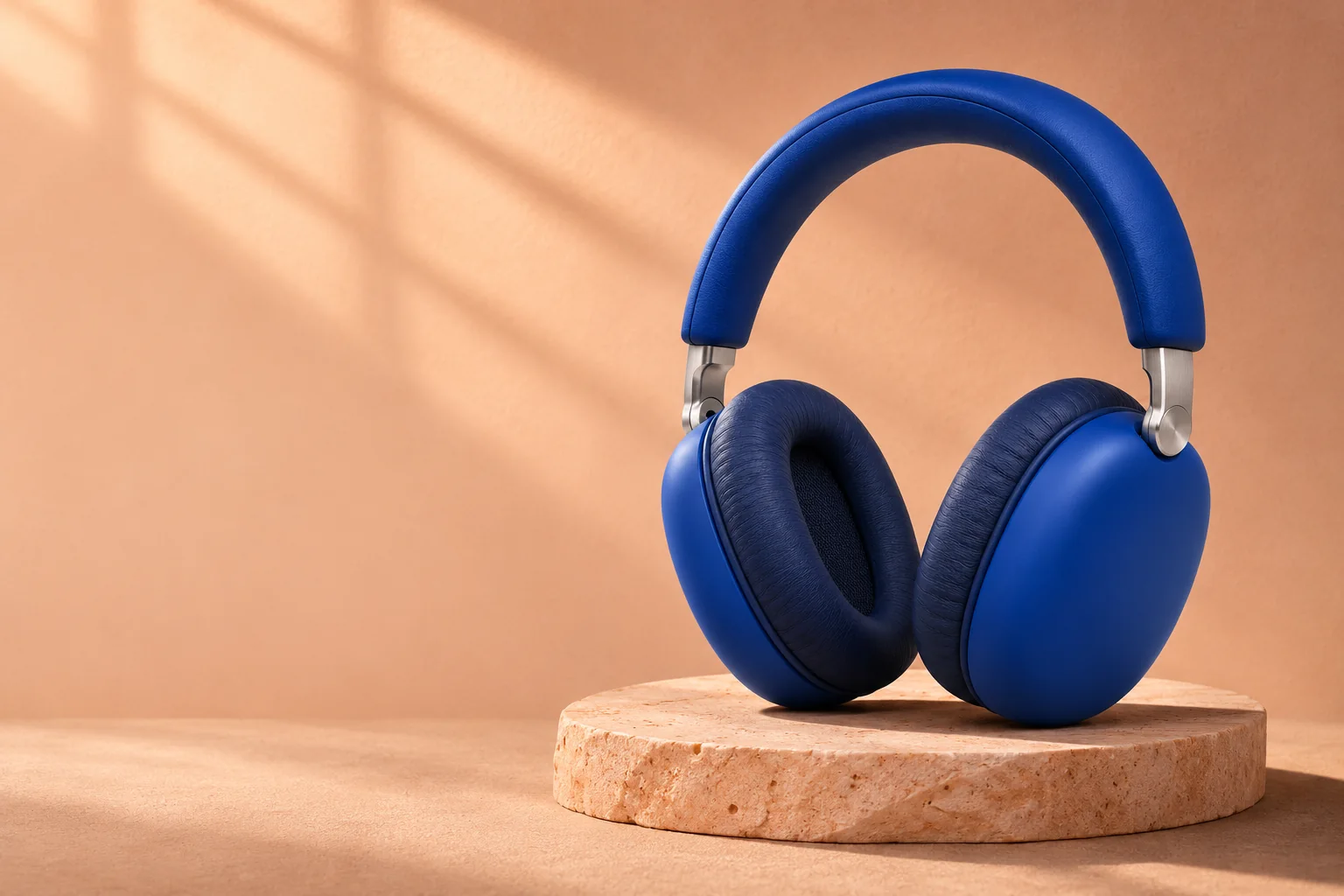
Consider the blue headphones in these product and campaign concepts. The studio view makes the earcups, cushions, and headband easy to inspect. The warm setting gives the same design a different mood and leaves space for a headline. That is a practical brief for reference-image creation: define what identifies the product, then design the setting around it.
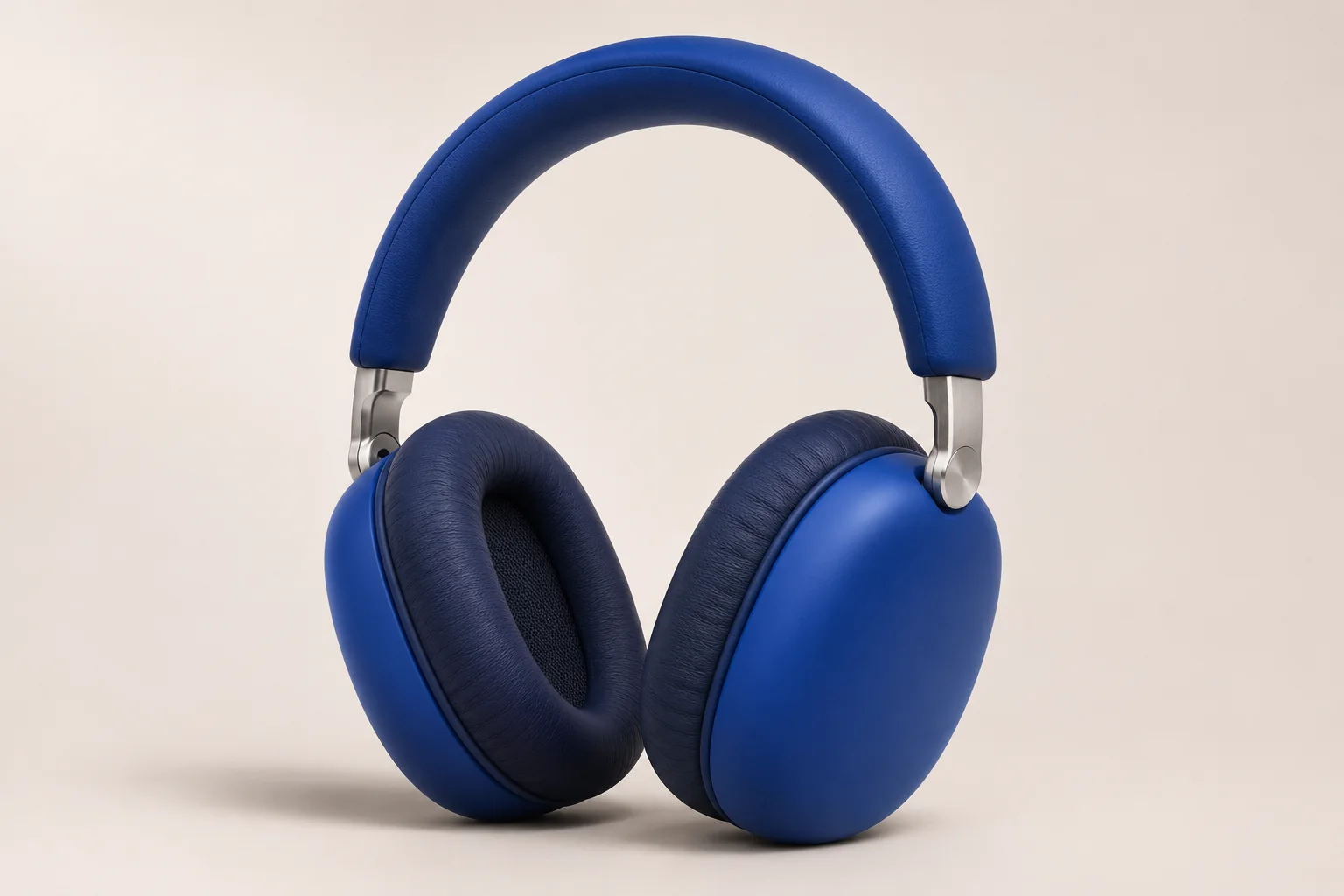
In Image to Image mode, select Seedream 5.5 and upload your product photo. If you add a second reference, give it a separate job: the lighting, color palette, or setting. A scene reference should not accidentally replace the product's shape or introduce a second object.
Give Each Reference a Clear Role
For a product photo paired with a scene reference, a focused instruction could be:
Use the headphones in image 1 as the product reference. Keep their shape, blue color, cushions, and silver hinges. Use image 2 only for the warm lighting and background palette. Place the headphones on the right and leave clear space on the left for a headline. Add no text.
Choose 16:9 when the intended result is a wide banner, then select 1K, 1.5K, or 2K in the interface. The prompt assigns reference roles and composition; the controls set the output format. For a vertical creative, change the canvas and rethink the placement instead of squeezing the same layout into a narrow crop.
Refine Color, Light, and Background with Seedream 5.5
Seedream 5.5 focuses on keeping an image coherent through successive edits. ByteDance's update improves the preservation of untouched areas while refining light, materials, skin texture, and small text. For a campaign, that makes focused revisions a useful way to develop a chosen direction.
Separate your changes by their purpose. A background revision changes the setting. A lighting revision changes the mood. A color revision explores a different product or campaign palette. Naming the goal makes the next result easier to judge.
| Creative goal | Direction to give | Details to compare |
|---|---|---|
| Replace a plain backdrop | Describe the surface, background, and position of the product | Silhouette, scale, contact shadow, and product markings |
| Warm up the lighting | Name the light direction and how soft it should be | Material texture, reflections, and the original product color |
| Explore a color variant | Identify the exact part whose color should change | Cushions, hinges, and other parts outside the change |
| Make room for copy | Specify the product's position and the area to leave open | Subject size, balance, and separation from the background |
Use the preferred result as the reference for the next revision. If a version changes a defining feature, return to the last useful image and make the instruction more specific. A short series of deliberate edits is easier to direct than a single request that changes the product, lighting, setting, and composition together.
Create Transparent Assets and Text-Led Designs
Seedream 5.5 can also generate transparent PNGs, including partially transparent materials. Select Background: Transparent and PNG when you want a standalone graphic or product-style asset to place over different layouts. Choose Opaque for a complete photographed scene, or Auto to let the model determine the background.
Transparency and open space serve different jobs. A transparent asset lets you change the design behind the subject. Open space inside a complete scene gives a headline a natural place to sit. Choose the approach before writing the brief so the image fits its eventual layout.
For posters or promotional graphics, specify the exact short wording, its position, and the visual hierarchy. Make the headline distinct from supporting text and keep small copy out of busy areas. Seedream 5.5's text improvements make these compositions worth exploring; check the spelling and readability at the size where the design will appear. You can also generate the visual without text and add final typography in your design editor.
How to Use Seedream 5.5 on LatiAI
- Open the image generator and select Seedream 5.5. Choose Text to Image for a new composition, or Image to Image when a photo or visual reference should guide the result.
- Write the brief and choose your settings. Describe the subject, setting, and composition. For an edit, state what changes and what stays. Add up to 10 reference images with clear roles, then choose the aspect ratio, resolution, output format, and background.
- Generate, refine, and use the image. Inspect the parts that matter to the brief, choose your preferred result, and continue editing or download it for your design.
Match the Settings to the Asset
| Asset | Canvas direction | Output suggestion |
|---|---|---|
| Square product visual | 1:1 with clear separation around the subject | Opaque background; JPG or PNG |
| Vertical campaign image | 3:4 with space above or beside the product | Compose for the vertical layout before adding text |
| Wide website or email visual | 16:9 with room for the headline | Keep the main product away from the text area |
| Standalone design element | Choose a ratio that fits the subject | Transparent background with PNG |
Seedream 5.5 offers 1K, 1.5K, and 2K for each of these layouts. Settle the composition in a draft, then choose the output size for your final asset.
Seedream 5.5 vs Seedream 5.0 Lite: Choose for the Brief
Choose Seedream 5.5 when your workflow centers on revising a visual, developing natural-looking materials, or creating transparent assets. Consider Seedream 5.0 Lite when its 3K output or larger reference-image allowance fits the project.
| On LatiAI | Seedream 5.5 | Seedream 5.0 Lite |
|---|---|---|
| Image resolutions | 1K, 1.5K, 2K | 2K, 3K |
| References in image-to-image mode | Up to 10 | Up to 14 |
| Transparent-background control | Auto, Opaque, or Transparent; PNG for transparency | No dedicated background control |
| Selection focus | Repeated editing and reusable transparent assets | A larger reference set or a 3K deliverable |
The update from Seedream 5.0 Pro puts more emphasis on preserving unedited details, transparent output, and natural-looking light and materials. If you use 5.0 Lite on LatiAI, choose around your reference set and intended output using the settings above.
If you already work with Seedream 4.5, its separate guide remains available for that version's workflow. Use this page for 5.5-specific settings and transparent-output options.
Seedream 5.5 or Nano Banana 2.1 for Campaign Images?
The format of the finished asset can make this choice straightforward. Seedream 5.5 offers transparent PNG output and a workflow suited to focused revisions. Nano Banana 2.1 offers up to 4K and additional canvas shapes, including 4:5, 1:4, and 4:1. Both accept up to 10 reference images on LatiAI.
Choose Seedream 5.5 for transparent assets you can reuse across campaign layouts. Choose Nano Banana 2.1 when the deliverable calls for 4K or one of its extra wide or tall aspect ratios.
Both models are available in the AI Image Generator. When comparing them, keep the product reference, intended composition, and lighting direction consistent. Look at the product's defining features, material texture, and space for copy rather than choosing on resolution alone.
Frequently Asked Questions
Make Your Next Visual with Seedream 5.5
Start with an idea or a product reference. Shape the setting, refine the details, and bring your next campaign into view.
Create with Seedream 5.5Explore More AI Models
Seedream 5 Lite AI Image Generator - Chain-of-Thought Visual Reasoning with Web Search
An AI image generator that thinks before it creates. Seedream 5 Lite by ByteDance combines Chain-of-Thought visual reasoning with real-time web search to generate images that understand physics, logic, and current reality.
Chinese AI Image Generator - Seedream 4.5 for Commercial 4K Photos
The leading Chinese AI image generator creates commercial 4K photos in seconds. Seedream 4.5 by ByteDance delivers photorealistic results with perfect text rendering, cinematic lighting, and up to 14 reference images.